Installing#
Standalone Jupyter setup#
Many people use Jupyter Lab or Jupyter Notebook on their own workstation or computer. The following instructions are for installing uvk in a Python environment where either Jupyter Lab or Notebook gets set up. They all assume the user types commands in a shell terminal.
Using venv and Pip#
Let's build and set up a virtualenv named jupyter right in the shell's current directory.
python -m venv jupyter
Activating this environment depends on the operating system and shell one is using. Here are instructions for the most common situations:
| Operating system | Shell | Activation command |
|---|---|---|
| Windows | Classic command prompt (CMD) | .\jupyter\Scripts\activate.bat |
| Powershell | .\jupyter\Scripts\Activate.ps1 |
|
| UNIX-ish | Bash or Zsh | . jupyter/bin/activate |
| Fish | source jupyter/bin/activate.fish |
|
| Nushell | overlay use jupyter/bin/activate.nu |
UNIX-ish (adj.)
Refers to all UNIX-descended or UNIX-imitating operating systems in used commonly to drive modern workstations. Covers GNU/Linux distributions, *BSD and MacOS — all non-Windows tier-1 and tier-2 uv-supported platforms.
Now install Jupyter Lab or Jupyter Notebook and uvk. and install the uvk kernel spec so that Jupyter Lab sees it.
pip install jupyter uvk
From there, start Jupyter Lab or Notebook:
jupyter lab # or jupyter notebook
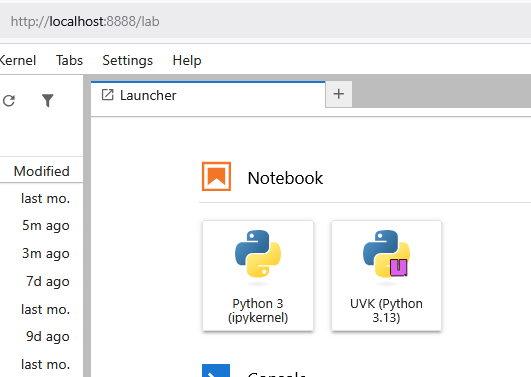
and one should see the uvk kernel icon to start authoring a notebook against it.
Using Conda#
We build a Conda environment named jupyter in which to install Jupyter Lab/Notebook.
The activation of this environment is not dictated by operating system or shell.
However, we must still use Pip to install uvk,
as it is not distributed as a Conda package.
conda create -n jupyter --yes jupyter jupyterlab
conda activate jupyter
pip install uvk
jupyter lab
You should then expect to see a browser window or tab open with a screen similar to above.
Using uv tool install#
The most elegant installation approach for uv users is uv tool install,
putting uvk in the same tool environment
as the complete suite of common Jupyter tools.
Enabling one's shell to use uv-installed tools
uv tool install adds executables in a directory that must be put in one's PATH
environment variable in order to call them from one's shell.
The easiest way to do this is to run
uv tool update-shell
and then restart the shell.
Run the following:
uv tool install jupyter-core --with=jupyter --with-executables-from=uvk
This environment will already carry a general-purpose uvk
kernel,
which will show up in the launcher window when Jupyter Lab or Jupyter Notebook is started.
In addition to the Jupyter apps, the shell has the uvk executable,
necessary to start uvk kernels
as well as to add further uvk
kernels with site-specific configurations.
Jupyterhub setup as administrator#
Jupyterhub is a common system for sharing a workstation or compute cluster by spawning Jupyter Lab instances to multiple users, deployed over a authentication and compute orchestration subsystems. The uvk kernel is particularly useful on such systems to facilitate access to bespoke sets of requirements.
uvk provides the greatest benefits when it is made available to the Jupyterhub instance out of the box, as part of the environment provided through the Jupyterhub install. Since the simplest way to install Jupyterhub is through PyPI, we demonstrate the installation of uvk in the same environment. We also assume deployment on a UNIX-ish system. Administrators may look up other examples on this page to adapt the instructions.
python -m venv ./jupyterhub
. jupyterhub/bin/activate
pip install jupyterhub uvk
The Jupyterhub system then includes the default uvk kernel side by side with the default IPython kernel.
User uvk kernel showing up in any Jupyter instance#
The uvk kernel can be installed in the user data directory that Jupyter looks up when searching for kernel specs. That way, the kernel shows up in every Jupyter Lab or Notebook instance one runs, including on Jupyterhub. This is how a Jupyterhub user can install uvk for themselves, without administrator intervention.
If uv is available,
uvx uvk install --user
is all that's needed. Otherwise, if only Python is present, building a permanent virtual environment is necessary.
python -m venv .uvk
. .uvk/bin/activate
pip install uvk      # Comes with uv!
uvk install --user
deactivate           # So other env modifications don't modify this one.
The environment activation statement in the snippet above varies depending on one's shell.
Look up here if you use neither bash nor zsh.
If the Jupyter instance where the kernel is expected is already running
(e.g. as on Jupyterhub),
the user should see the uvk icon appear in the Launcher window
within about a minute of invoking uvk --user.
Newly started Jupyter instances will have it from the get-go.
Comparing the installation of regular IPython kernel specs to uvk#
Jupyter instances all come with a pre-deployed IPython kernel, named by default Python 3 (ipykernel). Similarly, installing the uvk Python package pre-deploys a default uvk kernel.
In addition, users can add their own IPython kernels, typically in order to use their own environments in Jupyter kernels, or to configure their kernel in various ways. Such kernels get an identifier name and a display name: the former is for tools to track the kernel spec, and the latter is used to label the kernel spec in the Jupyter interface.
python -m ipykernel install --name mykernel --display-name 'My kernel from my env'
The uvk executable also provides an install subcommand that serves the same purpose as
ipykernel install.
It takes essentially the same parameters.
uvk install --name my_uvk --display-name 'I liuvke this a lot'
Invoke uvk --help for a terse listing of the command line arguments.
The full reference includes further examples.