How to author a notebook to make is the easiest possible to share#
One of the design objectives of uvk is to make notebooks easier to share with collaborators enabling them to be self-contained. Under reasonable circumstances, such notebooks could be e-mailed to people or published all by themselves (as Github Gists, for instance), then be open in a reader's Jupyter instance and run without any preparation ritual, nor fear that the notebook might affect one's own computing space.
Summary of best practices
- Have a uvk kernel named
uvk. - Use inline script metadata, but avoid customizing the uv command line heavily.
- Document data downloads and generations clearly: where data is stored, and how it can be deleted once the reader is done with the notebook.
Read below for full details.
uvk kernel installation convention#
A Jupyter notebook contains metadata that the Jupyter instances uses to determine what kernel to start when the notebook is open. The most critical aspect of this metadata is the kernel name. Most notebooks are authored using the default Python kernel that is part of every Jupyter setup (its name is python3).
By default, the name of the uvk kernel is,
unsurprisingly, uvk.
When a new notebook is created by clicking its icon,
this new notebook gets associated to a kernel named uvk.
If someone gets crafty and changes the name of their kernel at install time,
as in
uvk install --name fancy-uvk --user
then new notebooks created with its icon get associated with kernel fancy-uvk.
It is reasonable to expect readers of a uvk-based notebook
to install their own kernel named uvk.
However, an author should not expect their audience to track any whimsical
kernel-naming quirk of theirs.
Not changing the default name of the uvk minimizes
the surprises on the reader's end.
Remark the the name of the kernel is not the same as its display name.
The latter is the label displayed under the kernel's icon in the Jupyter Launcher window,
as well as on the top-right of the notebook editor in both Jupyter Lab and Jupyter Notebook.
It is set through the --display-name argument to the uvk executable,
as in this example:
uvk install --user --display-name 'I ❤️ uvk'
If the (not display) name of the kernel tied to the notebook is the same, non-default display names don't affect the outcome. Even though the notebook also copies the display name of the associated kernel, the display name of the kernel shown by Jupyter is that stored in the local kernel spec of the same (not dipslay) name.
What happens if I share a notebook with a nonstandard name?
Upon opening a notebook associated to a kernel they do not have, the reader is prompted by Jupyter to choose another one.
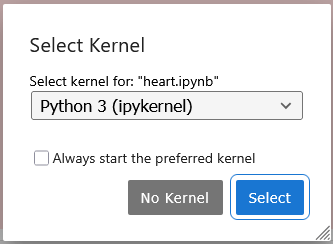
When opening the drop-down menu, the user then sees that they do have a uvk kernel!
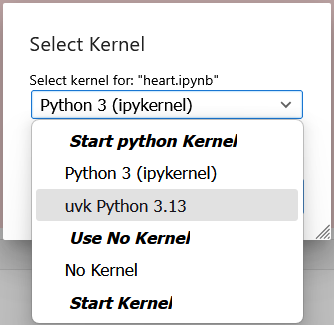
Why would they have to choose it now? It is confusing. And it is due simply from the kernel's name not being the same as that of their own uvk kernel. Thus, amusingly, the tip above is equally useful for sharing notebooks as it is for reading notebooks shared by others.
Provide a metadata cell#
The downside of uvk providing a clean isolated Python
environment on the fly is that this environment is nearly bare at the moment
the kernel starts.
The computations expressed in the notebook may rely on Python syntax or standard
library packages that are only available in some versions of the Python distribution.
Furthermore,
the author may be relying on a panoply of external packages.
Inline script metadata
fixes this problem for Python scripts run with uv.
uvk uses the same metadata syntax.
Simply type such a snippet of comment-guarded TOML in a code cell.
If this sounds tedious, the use
the uvk IPython extension and its %uvk cell magic,
as demonstrated in the tutorial.
Versioning package dependencies#
The set of external packages the notebook uses are captured through the dependencies field of the metadata cell.
Here is an example pulling in Matplotlib, Requests, Pandas and Scikit-Learn:
# /// script
# require-python = ">=3.13"
# dependencies = ["matplotlib", "pandas", "requests", "scikit-learn"]
# ///
It is possible to specify versions for these packages. This practice fosters reproducibility of the computations.
# /// script
# require-python = ">=3.13"
# dependencies = [
#     "matplotlib==3.10.8",
#     "pandas==3.0.2",
#     "requests==2.33.1",
#     "scikit-learn==1.8.0",
# ]
# ///
Dependency fixed- or upper-bounding is fine with uvk
In the package development community, there is a lot of discourse that takes a dim view of package bounding below or at a fixed version. However, uvk provides a dedicated environment for your notebook, so none of the common bounding practices apply. Being specify on the dependencies maximizes one's chances that their notebook will be runnable by their audience, even years beyond the moment of publication.
The syntax demonstrated above uses a compact representation of constraints,
without any blank.
When using the %uvk/%%uvk magic,
airier blank-laden expressions may be used,
provided each requirement is properly framed in quotes.
uvk normalizes it back to the compact form.
%%uvk -a "rich > 14"
# /// script
# require-python = ">=3.13"
# dependencies = [
#     "matplotlib==3.10.8",
#     "pandas==3.0.2",
#     "requests==2.33.1",
#     "scikit-learn==1.8.0",
# ]
# ///
--------------------------------------
# /// script
# require-python = ">=3.13"
# dependencies = [
#     "matplotlib==3.10.8",
#     "pandas==3.0.2",
#     "requests==2.33.1",
#     "rich>14",
#     "scikit-learn==1.8.0",
# ]
# ///
uv command line customizations port poorly#
The design of the uv command,
on which uvk relies for all the heavy lifting,
is such that it requires very little command line option tweaking.
Normally,
one configures their main settings through their own uv.toml file,
aligning themselves to whatever constraints imposed by their local network or IT infrastructure,
setting up package index mirrors if Internet connectivity is filtered in their environment,
and so on.
Thus,
customization of the uv command line that starts the IPython kernel,
through the tool.uvk.uv-args field of the metadata cell,
complicates the portability of your notebook.
In general,
no such customization should be needed;
the decision is yet left to the user's judgment.
Mind the data flows#
uv and uvk provide an isolated computing environment with respect to package dependencies. However, the uvk kernel is not a Docker container. Once it restarts, its virtual environment goes away, but every other aspects of the user's computing environment — mainly persistent storage, as well as further workstation administration aspects — remains as the computation modified it.
For simplicity's sake, the main computation that would impact a reader's environment would be the storage of ad hoc files, either downloaded as input to downstream computations, or produced through the execution of the notebook. In both cases, the careful author will document precisely where data gets stored, and if possible, how much data will be downloaded or stored. It is also excellent style to provide a commented-out code cell that would clean up the data stored by the notebook, returning the user's computer to the state the notebook found it in.